November 19, 2025
How to Add the PCC Rider When Doing a Term Conversion
Below, we’ve created a step-by-step guide on how to add our new Premium Chronic Care Rider when doing a term conversion. To get more details on the PCC Rider, click here.
[bs_collapse id=”collapse_7f42-d161″][bs_citem title=”Step 1″ id=”citem_4a46-2b69″ parent=”collapse_7f42-d161″]
Run an illustration with the Premium Chronic Care Rider and other riders if desired.
[/bs_citem]
[bs_citem title=”Step 2″ id=”citem_9eb0-3a28″ parent=”collapse_7f42-d161″]
Open e-app and select the permanent product you are converting to[/bs_citem]
[bs_citem title=”Step 3″ id=”citem_ab3e-dad7″ parent=”collapse_7f42-d161″]
Under “Pre-Qualification”, click on “Term Conversion eApplication”

[/bs_citem]
[bs_citem title=”Step 4″ id=”citem_adc0-2365″ parent=”collapse_7f42-d161″]
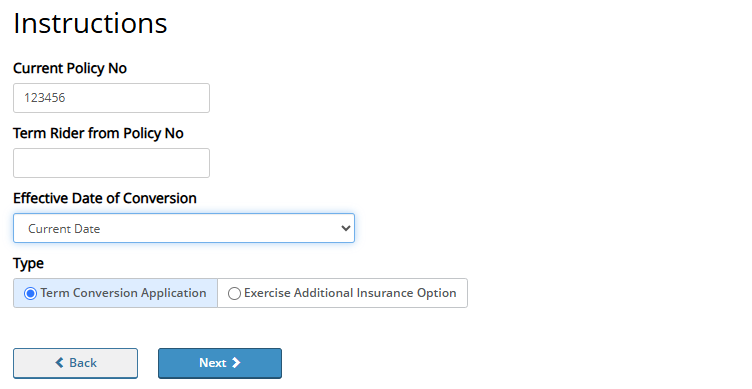
Complete the instructions with the current term policy number
[/bs_citem]
[bs_citem title=”Step 5″ id=”citem_b956-b79b” parent=”collapse_7f42-d161″]
Complete the Primary Insured Information and Beneficiaries information
[/bs_citem]
[bs_citem title=”Step 6″ id=”citem_619a-36ca” parent=”collapse_7f42-d161″]
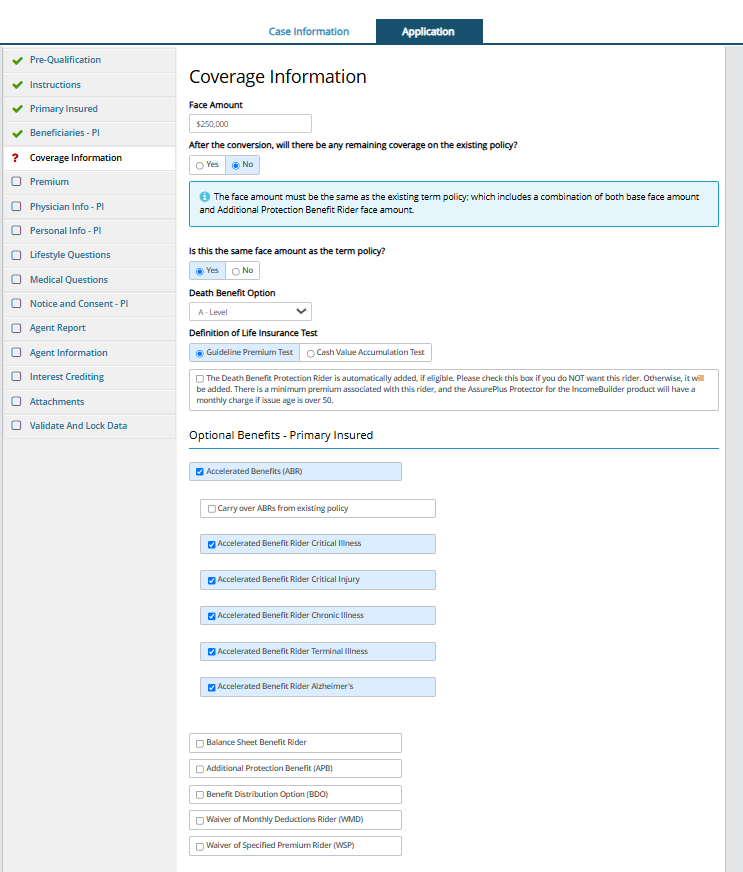
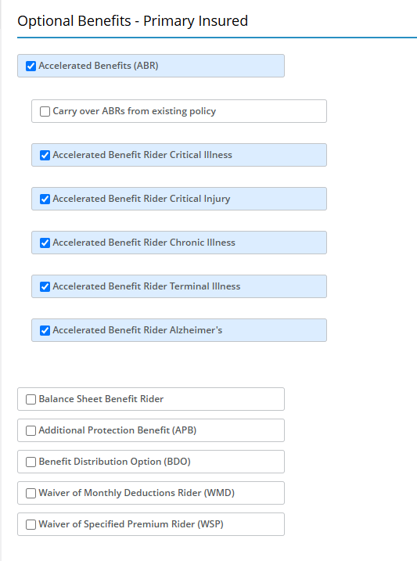
- On the Coverage tab, select all desired riders. If you are adding PCC, you must select Accelerated Benefits (ABR) and then click each Accelerated Benefits Rider – Critical Illness through Alzheimer’s.
- You will need to complete the Premium Chronic Care Supplement Application (20968) and the Premium Chronic Care Rider Disclosure (20969) and upload them at the end of the Term Conversation e-app; or you can upload them using the Upload A Form feature found in Quick Tools for your inforce Term Policy.
[/bs_citem]
[bs_citem title=”Step 7″ id=”citem_1f25-259f” parent=”collapse_7f42-d161″]
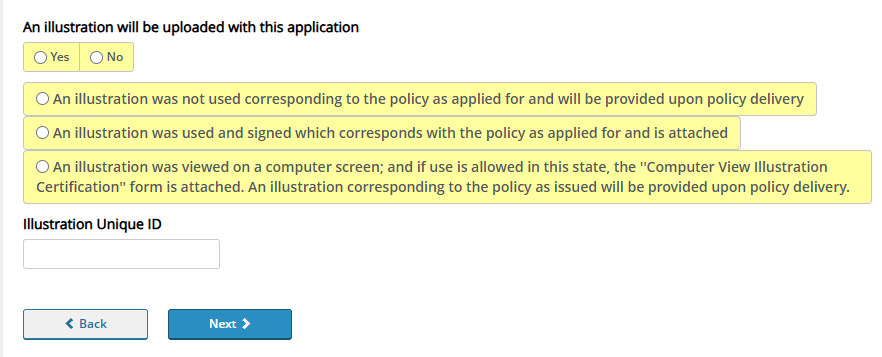
- You will have the option to upload an illustration at the end of the Term Conversation e-app; or you can upload it using the Upload A Form feature found in Quick Tools for your inforce Term Policy.
[/bs_citem]
[bs_citem title=”Step 8″ id=”citem_36dd-85c8″ parent=”collapse_7f42-d161″]
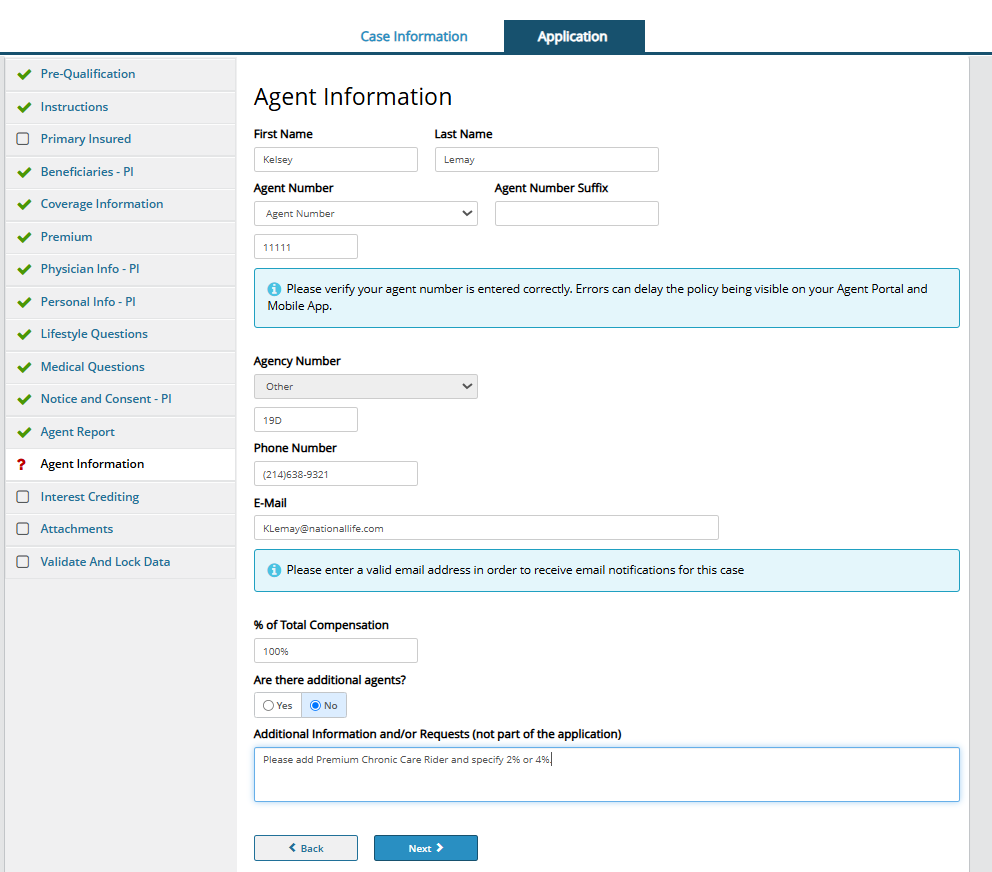
On the Agent Information tab, indicate that you would like to add Premium Chronic Care rider and the percentage desired.
[/bs_citem]
[bs_citem title=”Step 9″ id=”citem_44fd-c01b” parent=”collapse_7f42-d161″]
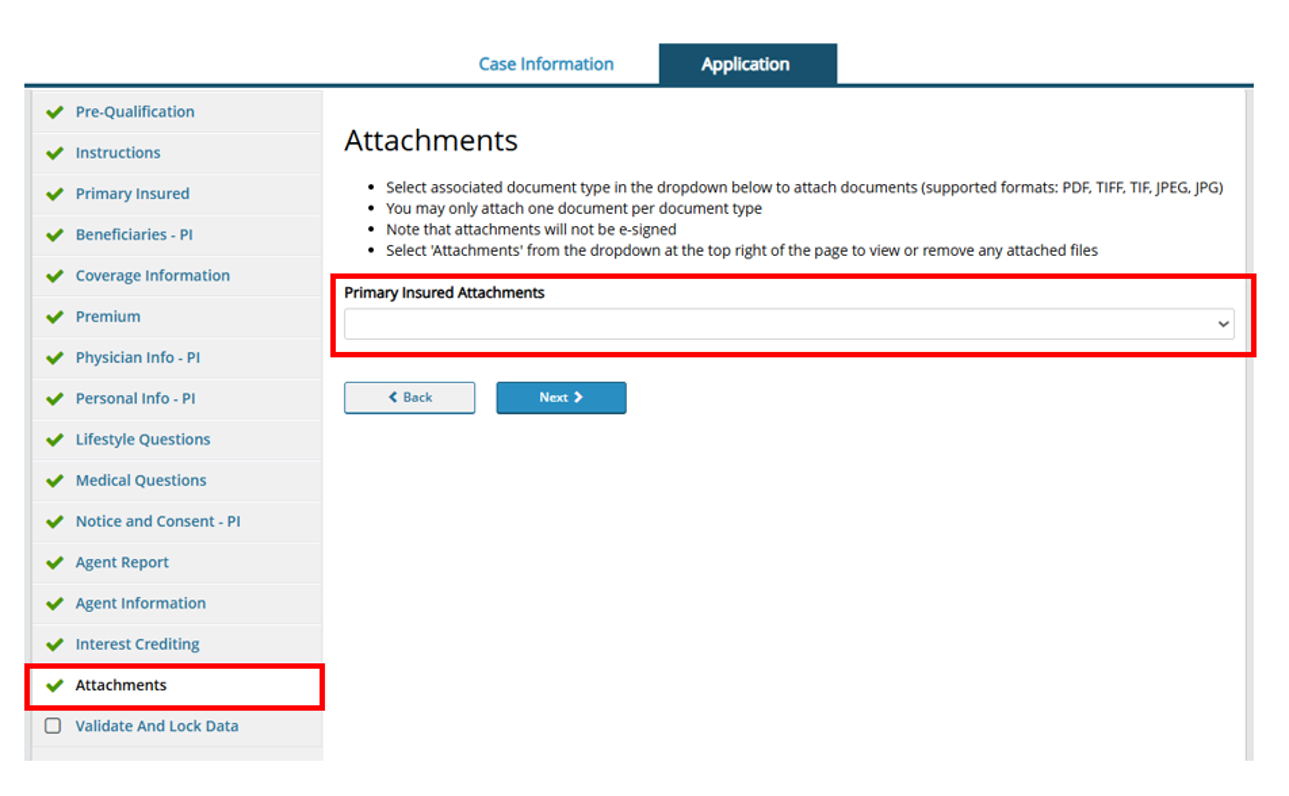
- You may upload the illustration by selecting Illustration in the Attachments dropdown.
- You may upload Premium Chronic Care Supplement Application and Premium Chronic Care Disclosure forms by selecting Other in the Attachments dropdown.
[/bs_citem]
[bs_citem title=”Step 10″ id=”citem_721f-f8a1″ parent=”collapse_7f42-d161″]
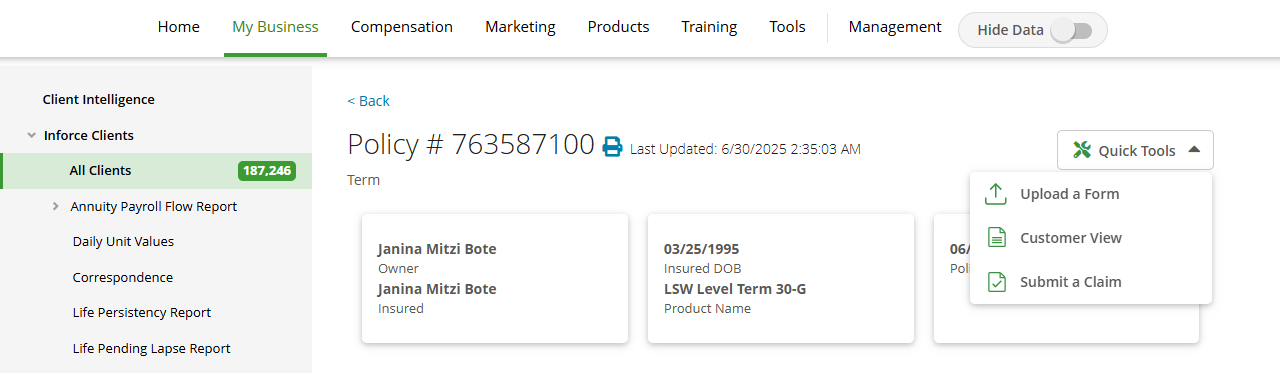
- If you prefer to upload your illustration and/or Premium Chronic Care rider forms through your agent portal, select the term policy that is being converted from your Inforce Clients page.
- In the Quick Tools dropdown, select Upload a Form.
[/bs_citem]
[bs_citem title=”Step 11″ id=”citem_6333-abdc” parent=”collapse_7f42-d161″]
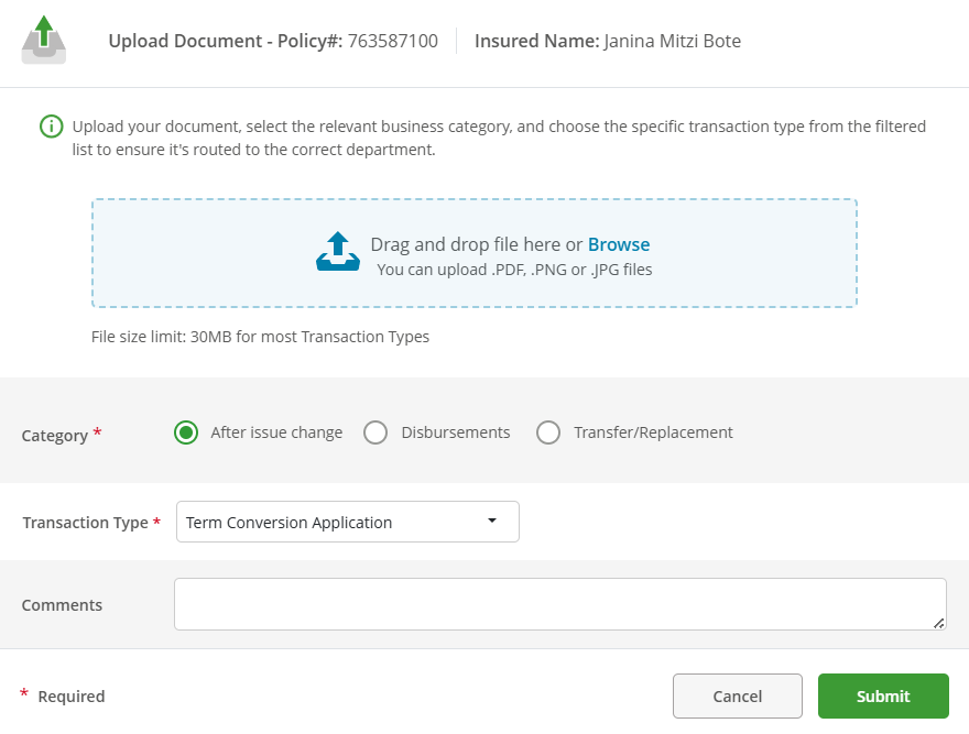
- Attach your forms in the blue box.
- Select After issue change category
- Select Term Conversion Application transaction type
- Add comments if needed and then click Submit.
[/bs_collapse]
TC8564353(1125)1